


Step by step
- Generate the right size. Pick Letter or A4 in the graph paper generator to match the paper in your printer, so nothing needs scaling.
- Turn on the ruler check mark. It adds a 1 inch (Letter) or 20 mm (A4) reference line to the bottom of the page.
- Download the PDF rather than printing the web page. PDFs keep exact dimensions.
- Print at actual size. In the print dialog choose “Actual size”, “100%” or “Scale: 100”. Avoid “Fit to page”, “Shrink oversized pages” and “Fit to printable area”, which scale the page down by 3–6%.
- Measure. Hold a ruler against the reference line. If it is short, a scaling option is still on somewhere, often in the printer driver’s own settings.
Margins
Most home printers cannot print the outer 3–6 mm of a sheet. The generators keep a margin of 8 mm by default and draw only whole squares, centred on the page. If you set the margin to zero, the outer lines may be cut off.
Paper and ink
- Standard 20 lb (75–80 g/m²) copy paper is fine for pencil.
- Use 24 lb (90 g/m²) or heavier paper for markers and fountain pens, which bleed through thin paper.
- Light blue or gray lines save ink and keep your work easy to read. Print in grayscale if your printer is low on color ink.
- Print double-sided to halve the paper you use. Most grids line up well enough on both sides for everyday use.
In practice
A student prints a 1/4 inch grid, measures four squares, and gets 7/8 inch instead of 1 inch. The printer scaled the page to fit its margins. Printing at 100% and checking the calibration line fixes the grid before the assignment is plotted.
Common mistakes
| Problem | Usually because | What to do |
|---|---|---|
| Squares are too small | Fit to page is enabled | Select Actual size / 100% |
| The grid is uneven at the edge | Borderless printing stretches the page | Use normal margins, not borderless |
| The ruler check is wrong | Measuring from the paper edge | Measure the printed calibration bar |
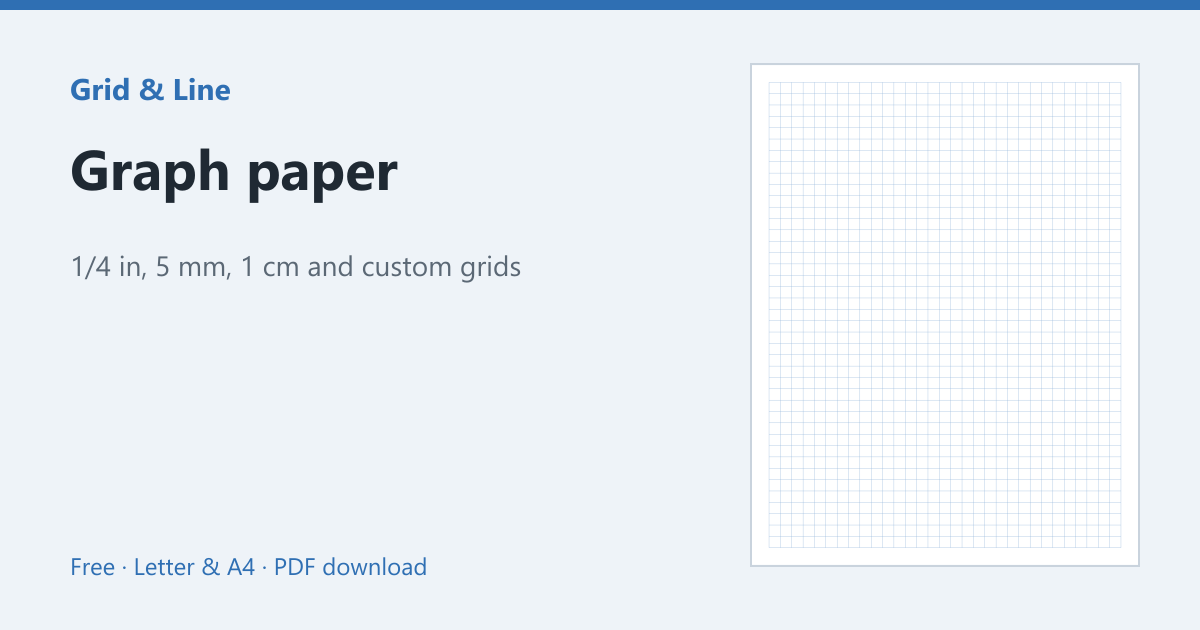 Graph paper
 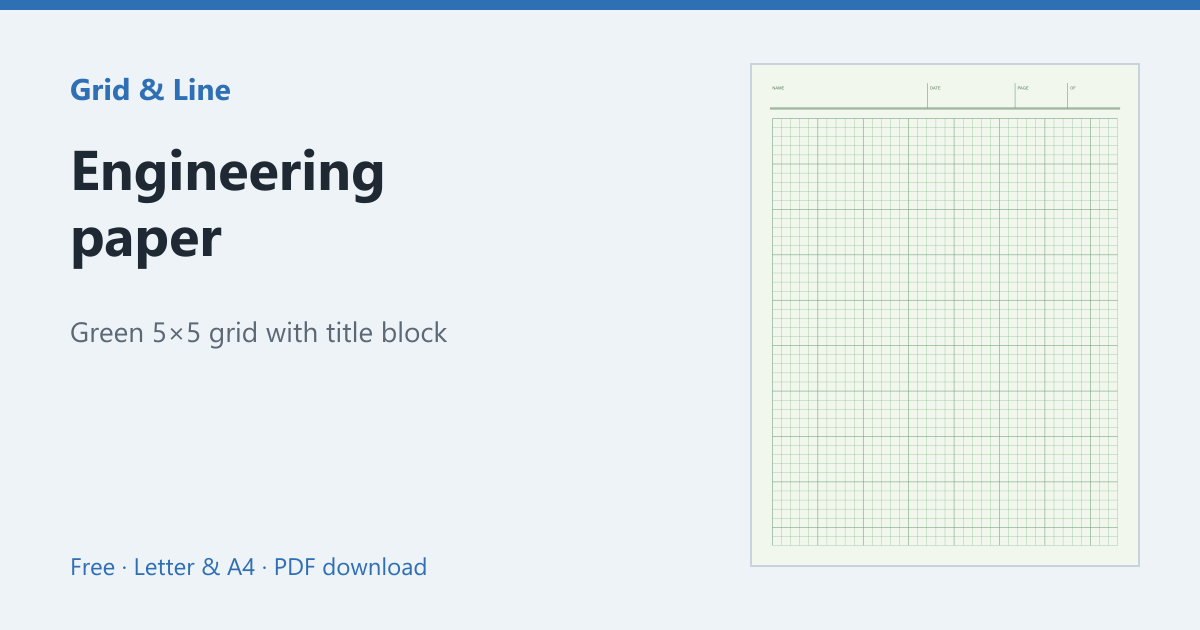 Engineering paper
 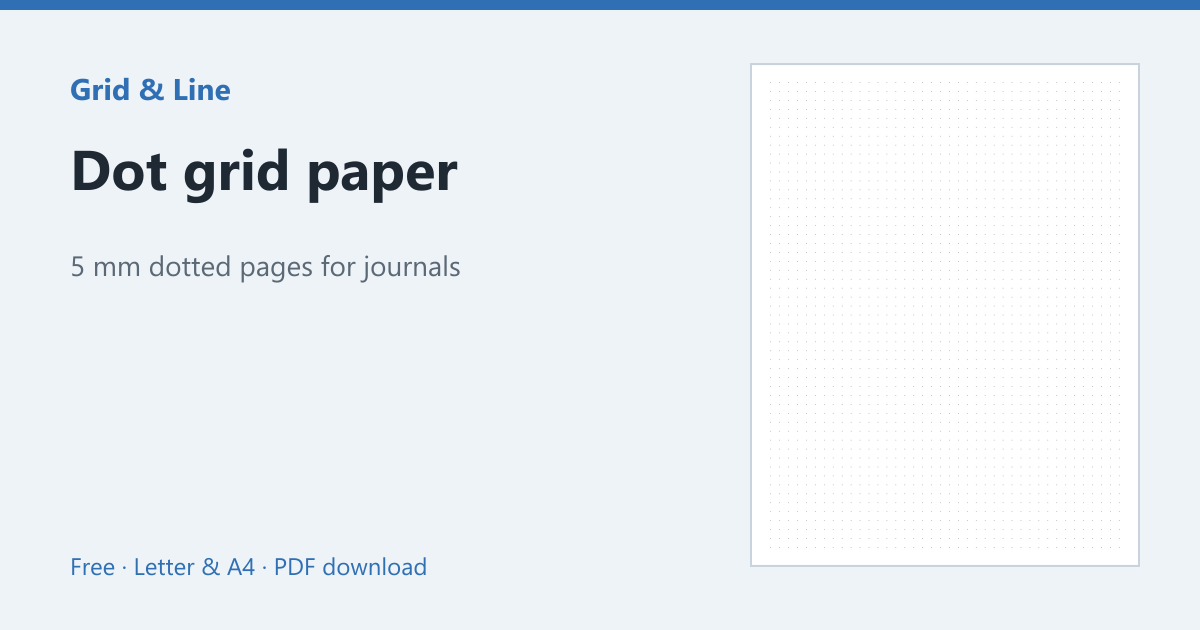 Dot grid paper